How-To-Guide
Opting In or Out of Notification Settings
Last updated: March 16, 2026
Getting Started
Use the video below or follow the steps outlined thereafter on how to manage (opt in or opt out of) email and system notification preferences associated with your SCTE.org account.
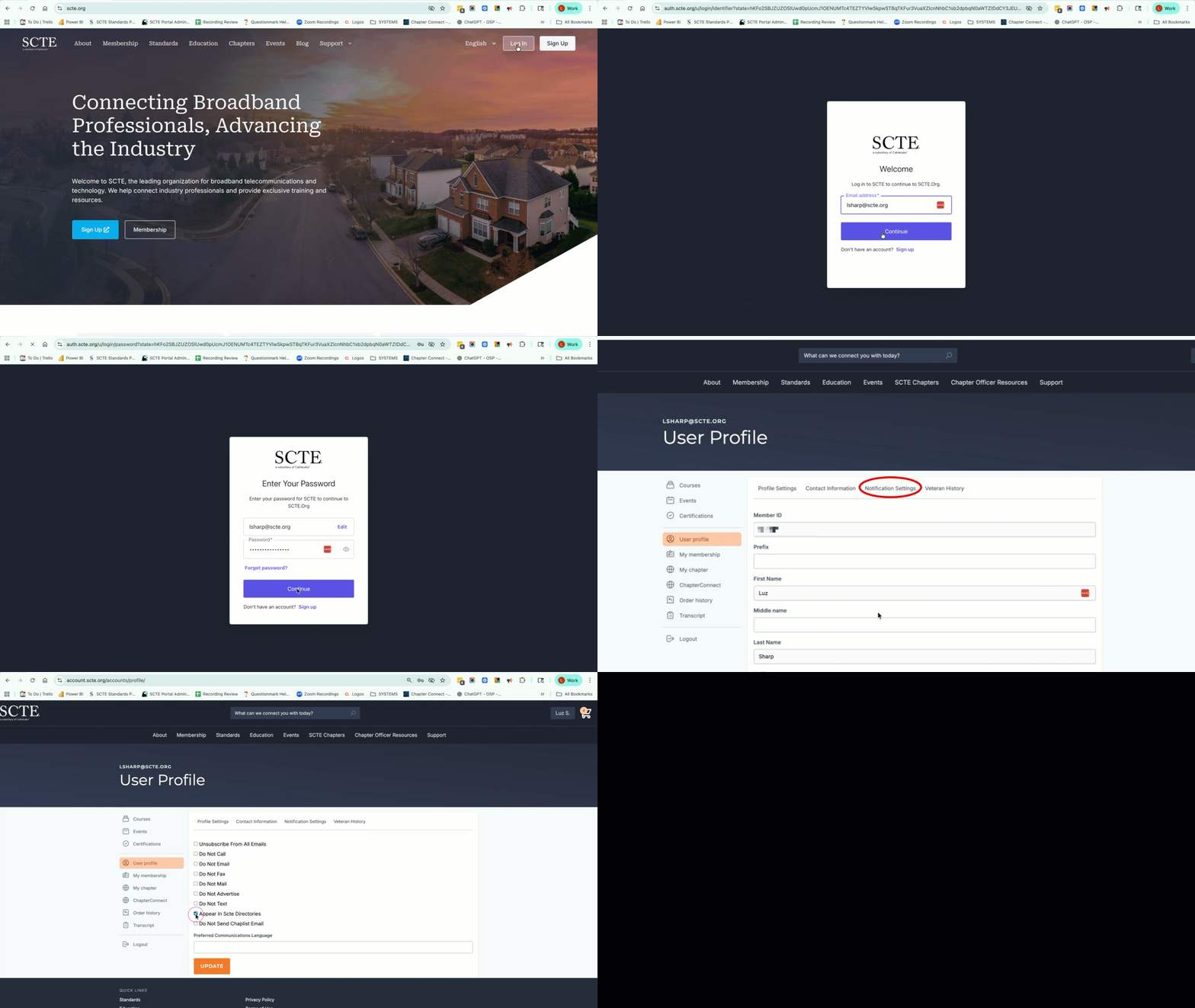
STEP 1: Login to the SCTE Portal
Navigate to scte.org
Click on the “Login” button in the top right corner
Enter your username and password and click “Continue”
Don’t have an account? Sign up here
STEP 2: Navigate to the Notification Settings Area
Hover over your name at the top right side of the page.
Click User Profile.
Click Notification Settings.
STEP 3: Update Notification Settings
For each notification category: Check the box to opt in or uncheck the box to opt out.
Save changes by selecting Update
If you are unable to update your notification settings: Please contact us.